
Resources · Templates
#10 envelope
template.
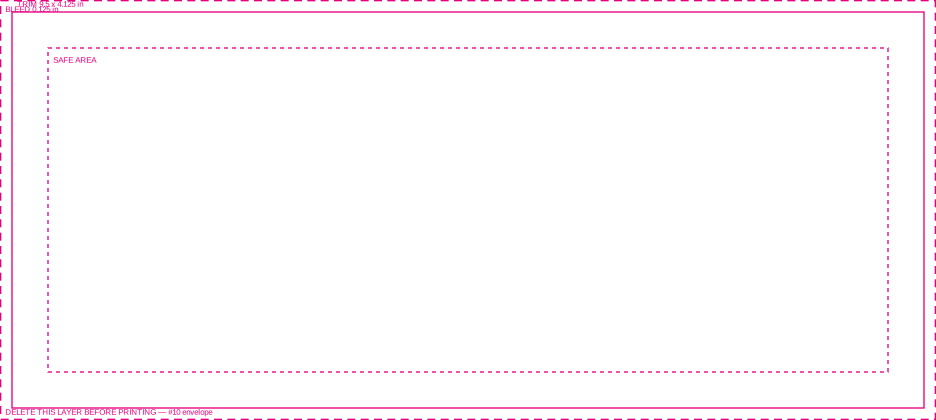
The standard US #10 business envelope, 9.5 × 4.125 inches.
The geometry
- Trim size
- 9.5 × 4.125 in — the finished piece
- Bleed
- 0.125 in on every side, so the document is 9.75 × 4.375 in
- Safe area
- 0.375 in inside the trim, leaving 8.75 × 3.375 in for text and logos
- Sides
- Front
9.5 × 4.125 in is the standard US #10 envelope — the one a letter folded in thirds fits into. It is the default business envelope.
Download
Envelopes are already made when they are printed, so the seams, the flap, and the gum line are physical objects the artwork has to work around. Anything near an edge or a seam behaves differently than it would on a flat sheet.
Printing to the very edge of an envelope is not always possible. It depends on the production method, so confirm with us before you design anything full-bleed. The bleed guide is included for the cases where it applies.
This template is the front face only. Printing on the flap or the reverse is a separate conversation.
No window. Window envelopes have a fixed aperture position that varies by converter — ask us for the right template.
Using the template
What to keep,
what to remove.
The guides are measurements, not decoration. Two of these rules are about not breaking the file, and two are about not printing the guides.
- Do not move the guides
- They are positioned to the exact trim, bleed, and safe dimensions. Moving one makes the file lie about its own size.
- Do not resize the document
- The page is already trim plus bleed. Scaling it scales the trim, and the piece comes back the wrong size.
- Do delete the guide layer before you export
- It is named GUIDES-DELETE-BEFORE-PRINTING in the SVG. Magenta lines are not artwork, and a guide left in prints.
- Do extend backgrounds past the trim
- All the way to the outer bleed edge. A background that stops at the trim line leaves a white sliver after cutting.
What opens it
- Adobe Illustrator
- Opens the SVG with the layers intact. The usual choice.
- Affinity Designer
- Opens the SVG and keeps the guide layer separate.
- Inkscape
- Free, and the layer names are written in its own format.
- CorelDRAW
- Imports the SVG. Check the document units are inches after import.
- Adobe InDesign
- Place the PDF as a guide on its own layer, then build the document to the same trim.
- Canva and similar
- Use the trim and bleed numbers to set up a custom size — these tools generally cannot open a layered SVG.
The SVG is the working file — its guides sit in one layer named
GUIDES-DELETE-BEFORE-PRINTING, so hiding or deleting that one layer
leaves a clean document. The PDF is a reference: its guides are
drawn on the page rather than in a toggleable layer, so if you build in the PDF you
have to remove them yourself.
Exporting and sending
- 01 Delete or hide the guide layer.
- 02 Check backgrounds still reach the bleed edge — removing guides sometimes reveals one that stopped at the trim.
- 03 Convert text to outlines, or send the font files alongside.
- 04 Export as PDF with bleed included. Keep vectors live rather than flattening to an image.
- 05 Name the file so a person can tell what it is — acme-business-card-front.pdf, not final_v3.pdf.
- 06 Send it with your project details so we can check it before anything is produced.
When to ask us instead
- The piece is going in the mail — postal requirements are governed separately and we will send the current specification.
- You want a size that is not on this list.
- The format is die-cut, folded, or finished in any way — the die or the finishing method is the template.
- You only have a logo from a website and nothing else.
- You are matching a colour to something you have printed before.
- You are not sure whether the design will survive the trim. That is a two-minute conversation and a cheap one.
None of these are a problem. They are the moments where two minutes now saves a reprint later — and we would much rather have the conversation before the file is built.
Start here
Designing to the edge?
Check with us first. Full-bleed envelope printing depends on the production method, and it is worth two minutes before you build the file.
- 1 Start your project
- 2 Tell us what you're creating
- 3 Receive your estimate
Prefer to talk? (217) 970-2300 · Mon–Fri, 8am–5pm